


The accelerating dominance of visual media across professional spaces has amplified the necessity to fix laggy video with greater precision. Notably, playback inconsistencies, such as frame desynchronization and motion instability, can damage the aesthetics of the video content. Regardless of its use, the results are always disrupted video performance that weakens audience retention and trust.
Prolonged exposure to such anomalies may intensify media degradation, necessitating immediate repair via tutorials. Considering all of this, the article below is a comprehensive solution, covering top AI tools and workable fixes in the context.
Part 1. What Causes Videos to Lag, Freeze, or Stutter?
Part 2. Best AI Tools to Fix Choppy and Lagging Videos
Part 3. Alternate Fixes to Remove Lag from Videos and Improve Playback
Part 4. How to Avoid Laggy and Stuttering Video Playback – X Tips
Part 1. What Causes Videos to Lag, Freeze, or Stutter?
Footage lag, freeze, or stutter when the data cannot be decoded, happening due to slow or unstable internet (buffering). Besides this, overload or weak hardware (CPU, GPU, or low RAM), or high video resolution or bitrate can be significant reasons. Most importantly, browser or app glitches and minor congestion on the streaming service’s servers can introduce lag in your videos.
Part 2. Best AI Tools to Fix Choppy and Lagging Videos
To counter such disruptive playback issues, a list of new-generation video lag removers is highlighted to restore video coherence:
1. Repairit
Being a notable platform, Repairit can fix videos that freeze, glitch, or refuse to play because the file is damaged. The program is built to address repair issues that cause laggy playback, such as broken frames or recording errors. Most importantly, it can fix high-resolution videos such as full HD, 6K, and 8K clips from professional and consumer devices. This works when very large or high-quality files become choppy or unplayable after shooting.
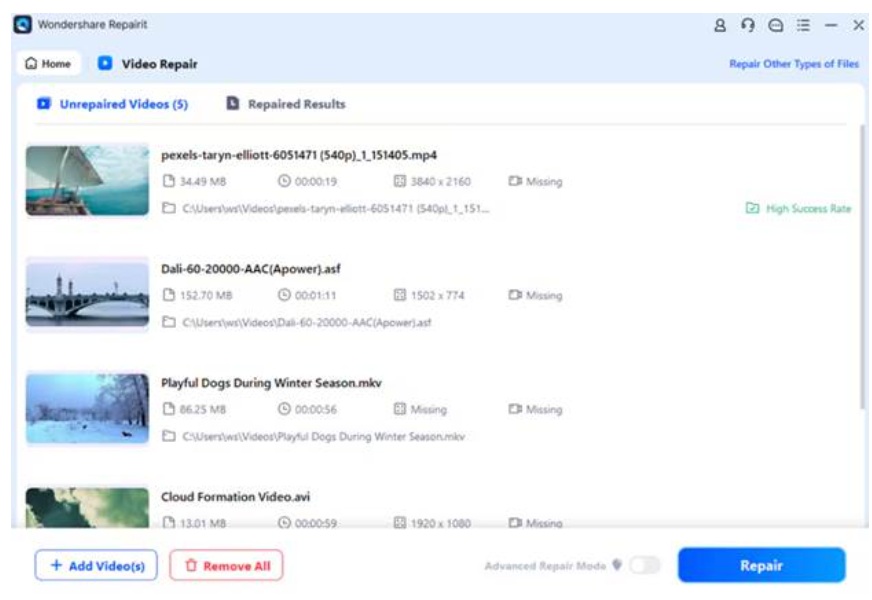
Besides this, you can add multiple corrupted clips and repair them all in a single run. This saves time if you have a whole folder of laggy or damaged clips from the same event or camera. To remove lag from videos, the program incorporates AI-based repair methods to analyze and rebuild broken data.
Key Features
1. Advanced Repair with Sample Video: It has an Advanced Repair feature where you add a good “sample” video from the same camera and format.
2. Facilitates Multiple Video Formats: The program works with the most common video formats, such as FLV or MKV, from many different devices.
3. Works on Windows and macOS: Repairit is available for both Windows and macOS, enabling users to repair laggy videos on most computers.
Comprehensive Guidelines to Fix Video Lagging With Repairit
Follow the guidelines given to systematically diagnose, optimize, and restore impaired video performance across devices:
Step 1. Add Corrupted Videos in the Video Repair Section
After launch, access the “Video Repair” section and press the “Start” button to insert laggy clips.
Step 2. Begin Repair on Inserted Laggy Footage
Next, go to the “Repair” button to initiate the advanced repair process for added videos.
Step 3. Review and Download the Final Repaired Version
Once the repair action finishes, review the final repaired files and click “Save” to download them.
2. AVCLabs Video Enhancer AI
This Video Enhancer AI incorporates motion compensation to examine motion between existing frames to generate additional frames in between. AVCLabs can automatically compensate frames for slow-motion clips, supporting 2× to 16× slow‑motion frame compensation via the Motion Compensation feature.
Key Features
1. Video Stabilization feature reduces unnecessary camera shake in handheld footage.
2. Upscales low-resolution videos up to 8K, restoring essential details.
3. Provides AI Denoising and enhancement models that remove noise and artifacts.
3. HitPaw Video Enhancer
Another video lag remover is HitPaw Video Enhancer, which transforms choppy footage into smooth, cinematic motion through frame interpolation. It uses AI Stabilize Model to detect and correct camera shake caused by hand movements, then repositions the scene.
Key Features
1. Its Video Repair module can automatically repair corrupted frames.
2. Offers AI models, such as the General Denoise Model, to reduce grain.
3. Frame Interpolation, Low-Light Enhancement, and Stabilization help maximize smoothness.
Part 3. Alternate Fixes to Remove Lag from Videos and Improve Playback
These conventional yet highly practical interventions often resolve system inefficiencies that contribute to visual disruption. Below are a few approaches to remove lag from video, each designed to improve playback fluidity, addressing common issues:
Fix 1. Restart Your Device and Media Player
A system reboot clears temporary memory overloads, refreshes processing cycles, and eradicates background interference that interrupts view rendering. Restart both the device and media player through the tutorial given to re-establish video decoding mechanism:
Instructions: Close the video you are watching and fully exit the media player or browser. Later, press the “Start” option, click the “Power” icon, and choose the “Restart” option. Once the system reboots, open the media player again and replay the video to see if performance has improved.
Fix 2. Play Video in Another Media Player
Media players differ substantially in their codec architecture, rendering frameworks, and decoding efficiency. With this perspective, install an alternative media player to overcome embedded playback issues and improve synchronization accuracy. This way, you can fix laggy video that originates from software-specific decoding limitations instead of the video itself.
Fix 3. Lower Video Playback Quality
This fix reduces decoding pressure on the CPU and GPU, enabling better frame processing and minimizing latency. To improve playback continuity, dive into the tutorial and lower the video playback quality if streamed on YouTube or Netflix:
Step 1. For the task to remove lag from video, access the “Settings” icon and choose the “Quality” option.
Step 2. Now, select a lower resolution, such as 720p or 480p, then wait a few seconds. For some desktop media players, you can convert or downscale the file using a converter and play it.
Fix 4. Update Graphics and Audio Drivers
Once graphics and audio drivers are corrupted or incompatible with current video codecs, playback synchronization can deteriorate significantly. In this context, updated drivers introduce optimized processing protocols and improved decoding support, as the guidelines follow:
Step 1. Enter Device Manager, locate the “Display Adapter” option, expand it, and right-click your graphic driver. After this, choose the “Update Driver” option to allow Windows to start an update.
Step 2. Moving forward, press the “Search Automatically for Drivers” option and let Windows update the graphics driver. Follow the same steps for “Sound, Video and Game Controllers” to install the latest audio drivers.
Fix 5. Disable Hardware Acceleration
Consider turning off hardware acceleration decoding because it can redirect rendering behavior and restore smoother frame continuity. Adhere to the manual, and disable hardware acceleration in your media player because it may inadvertently trigger frame skipping:
Step 1. To fix laggy videos, open the media player, access the “Tools” tab, and choose the “Preferences” option.
Step 2. Next, click the “Input/Codecs” section, then expand the menu for Hardware-Accelerated Decoding and choose “Disable.”
Fix 6. Convert Video to Compatible Format
Wondershare UniConverter allows you to convert a huge range of formats (1000+), including MKV, WMV, and FLV. The program offers high-speed conversion modes and uses hardware acceleration or multicore CPU optimization to convert files. To convert and remove lag from video, review the guided manual below for UniConverter:
Step 1. Install UniConverter, then click the “Add Files” button to insert all the lagging or flickering clips.
Step 2. Afterward, extend the menu for “Convert To”, choose any other format from the options, and press “Convert All.”
Part 3. How to Avoid Laggy and Stuttering Video Playback – 5 Tips
The following preventive measures are exceptionally effective in “remove lag from videos” during high-resolution media processing:
| Tips | What to Do | Why it Helps |
| Close Background Apps | Disable unused programs or browser tabs. | Frees CPU, RAM, and disk/network resources to facilitate decoding. |
| Lower Resolution/Bitrate | Reduce video quality in apps. | Lower resolution and bitrate require less processing power. |
| Use a Better Media Player | Try reliable players like VLC, MPV | Such players handle codecs and hardware efficiently. |
| Keep System and Drivers Updated | Install OS updates and update graphics/audio drivers | Addresses faults and performance issues. |
| Optimize Network/Wi‑Fi | Move closer to the router, or use Ethernet | Stable connection reduces buffering and packet loss. |
Conclusion
Video playback disruption can compromise viewing continuity, perceptual immersion, and overall professional integrity. From codec incompatibilities and rendering inefficiencies to corrupted frames, you’re guided thoroughly on how to resolve any situation. For persistent lagging or structural damage, download Repairit and fix laggy videos with advanced repair mode within seconds.
